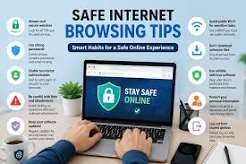

The internet has become part of everyday life, whether people are searching for information, communicating with others, managing accounts, or exploring new online services. However, routine actions such as clicking a link, downloading a file, or entering login details can sometimes create security risks when performed without proper attention.
When researching digital platforms or unfamiliar resources such as DMFirst, following basic online security practices can help users browse with greater confidence. These precautions do not require advanced technical knowledge. In many situations, simply checking details before taking action can significantly reduce unnecessary exposure to online threats.
Keep Your Browser and Operating System Updated
Software updates are not limited to adding new features. They often contain important security improvements designed to address weaknesses discovered in previous versions.
Using an outdated browser or operating system for an extended period may leave a device without newer security protections. For this reason, users should regularly check for legitimate updates and install them from official sources.
Automatic updates can also be useful when available because they reduce the chance of important security patches being forgotten.
Create Strong and Unique Passwords
A password acts as one of the first barriers between an account and unauthorized access.
Using the same password for multiple accounts weakens that protection. If login information from one service becomes exposed, the same credentials might be tested against email accounts, social networks, shopping platforms, or other services.
Creating a separate password for each important account helps limit this risk. Users should also avoid passwords based on easily predictable information such as names, birthdays, phone numbers, or simple patterns.
Verify Unexpected Emails and Messages
A professional-looking message should not automatically be considered trustworthy.
Unexpected emails or direct messages can include familiar company names, logos, formatting, and convincing language. These details alone do not confirm that the communication came from a legitimate source.
Before responding, users should examine the sender’s information and consider whether they were expecting the message. When something appears unusual, verifying the request independently is safer than relying entirely on the information contained in the message.
Do Not Let Urgency Control Your Decisions
Some suspicious communications attempt to create immediate pressure.
A message might claim that an account has been restricted, a payment requires confirmation, a password is about to expire, or urgent verification must be completed.
Pressure can cause users to overlook warning signs.
Instead of reacting immediately, users should take a moment to review the situation. If the message concerns an important account, opening the official service independently and checking notifications there can provide better confirmation.
Examine Links Before Opening Them
Links are one of the most common ways users move between websites, but they should still be approached carefully when their source is uncertain.
The visible words of a hyperlink may differ from its actual destination. In other cases, a domain may contain subtle spelling differences intended to resemble another website.
Users should pay particular attention to links appearing in unexpected emails, messages, advertisements, or unfamiliar pages.
If there is uncertainty about a link, manually visiting the expected website DM First through a known address can be a safer alternative.
Be Careful With Files and Downloads
Downloading a file means introducing new content to a device.
Documents, applications, compressed folders, browser extensions, and attachments should therefore come from sources users recognize and understand.
An unexpected attachment should not be opened simply because its filename appears familiar. Users should first determine why the file was sent and whether they were expecting to receive it.
Warnings displayed by browsers or security software should also be taken seriously rather than automatically bypassed.
Protect One-Time Codes and Security Information
Verification codes are often used to confirm sensitive account activities.
A service may send a temporary code when someone attempts to sign in, reset a password, recover an account, or modify security settings.
Because these codes can authorize important actions, they should remain private.
Users should only enter verification codes into legitimate services when they personally initiated the process. Unexpected requests asking users to share codes through messages, phone calls, or email deserve additional caution.
Use Multi-Factor Authentication Where Available
A strong password provides important protection, but an additional security layer can make an account more difficult to access without authorization.
Multi-factor authentication requires another form of confirmation beyond the password. Depending on the service, this could involve an authentication application, security key, device prompt, or temporary code.
Important accounts such as primary email, cloud storage, financial services, and professional platforms can particularly benefit from additional authentication.
Users should also ensure that their account recovery information remains accurate and secure.
Consider Browser Notification Requests Carefully
Many websites ask visitors for permission to send browser notifications.
These alerts can be useful when they come from services people actively use. However, allowing notifications from every website can create unnecessary distractions and may expose users to unwanted promotional or misleading messages.
Before selecting “Allow,” users should consider whether receiving future notifications from that website provides any real value.
If not, declining the request is usually sufficient.
Limit Access to Camera, Microphone, and Location
Modern browsers allow websites to request access to various device features.
Video conferencing services may legitimately need camera and microphone access, while mapping applications may require location information. However, permissions should make sense in relation to the website’s actual purpose.
For example, a simple informational page may have little reason to request microphone or camera access.
Users can also periodically review previously granted permissions and remove access that is no longer necessary.
Share Personal Information Selectively
Online forms frequently request information from visitors.
Some information may be essential for providing a particular service, while other details may be optional. Users should understand why information is required before submitting it.
Requests involving financial information, identity details, account credentials, or other sensitive data deserve greater scrutiny.
Providing only information that is genuinely necessary can reduce unnecessary exposure of personal data.
Check Account Activity Regularly
Many online platforms provide tools for reviewing recent account activity.
These sections may display active sessions, login attempts, connected devices, password changes, or other security events.
Checking this information occasionally can help users notice activity they do not recognize.
Unexpected login attempts, unfamiliar devices, unexplained password resets, or security-setting changes should be investigated through the service’s official account controls.
Avoid Saving Sensitive Information on Shared Devices
Public or shared computers should be treated differently from personal devices.
Saving passwords or leaving an account signed in can allow another person using the same computer to access private information later.
When using a shared device, users should avoid storing credentials and should completely sign out after finishing their session.
Sensitive activities involving important accounts are generally better performed on trusted personal devices whenever possible.
Use Password Managers Carefully
Remembering a different strong password for every account can become difficult.
A reputable password manager can help users generate and organize unique passwords without requiring them to memorize every credential.
However, the password manager itself should be protected with a strong master password and any available additional authentication.
Users should also obtain password-management software from legitimate sources rather than unfamiliar download pages.
Keep Important Files Backed Up
Digital security also involves protecting information from accidental or permanent loss.
Files can become unavailable because of device failure, accidental deletion, malware, damaged storage, or other unexpected problems.
Keeping another copy of valuable documents, photographs, projects, and business files can make recovery easier if something goes wrong.
Backups should be stored securely and checked occasionally to ensure important information can actually be recovered.
Review Browser Extensions
Browser extensions can provide useful features, but they may also receive significant access to browsing activity.
Users should install extensions only when they understand their purpose and trust the source.
Old or unused extensions should be reviewed periodically and removed when they are no longer required.
Keeping the number of unnecessary browser extensions low can also make browser permissions easier to manage.
Use Secure Connections for Sensitive Tasks
Public internet connections can be convenient, but users should be cautious when performing sensitive activities through networks they do not control.
Important tasks such as accessing financial accounts, changing passwords, or managing confidential information should preferably be completed through a trusted connection.
Users should also confirm that they are visiting the correct website before entering sensitive credentials.
Watch for Unusual Account Behavior
Sometimes the first sign of a security issue is unexpected activity.
A user may receive a password-reset email they did not request, notice unfamiliar account settings, discover messages they did not send, or receive alerts about unknown login attempts.
Such activity should not automatically be ignored.
Users should access the affected account through its official website or application, review security settings, change compromised credentials when necessary, and remove unfamiliar sessions or devices.
Keep Recovery Options Current
Account recovery information becomes particularly important when users lose access to their normal login method.
An outdated recovery email or phone number can make restoring access more difficult.
Users should periodically confirm that recovery options still belong to them and remain accessible. Recovery information should also be protected because it may be used to regain control of an account.
Develop a Habit of Checking Before Acting
Many everyday security problems can be avoided by introducing a simple pause before important online actions.
Before clicking a link, check where it leads.
Before downloading a file, consider its source.
Before entering a password, confirm the website.
Before sharing information, understand why it is required.
Before granting a permission, determine whether the website genuinely needs it.
These checks may take only a few seconds, but repeating them consistently can make safer browsing feel natural rather than complicated.
Final Thoughts
DM First Game is not based on a single tool or precaution. It develops through a combination of small, responsible decisions made during everyday internet use.
Keeping devices updated, creating unique passwords, enabling additional authentication, checking links, verifying unexpected messages, protecting security codes, limiting unnecessary permissions, monitoring account activity, and maintaining reliable backups can collectively provide stronger protection.
Most importantly, users should avoid automatically trusting unfamiliar requests simply because they appear professional or urgent. Developing the habit of checking important details before responding, downloading, signing in, or sharing information can help create a safer and more controlled online experience.